
|
TimeKeepR is a module that allows the entry and tracking of planned and actual times on elements other than project tasks, while maintaining a consistent entry logic with the Dolibarr standard.
This module extends the native time management capabilities to the following elements:
- Work order
- Ticket
- Native work order
- Factory
- Equipment
The goal is to enable consistent recording of planned and actual time in order to provide a consolidated monthly view of time.
|
Usage & Features
Time Entry Tab
On each compatible device, the module adds a dedicated tab allowing:
- Entry of planned times
- Entry of actual times
- On-the-fly time entry
- Viewing of the history of entered times
The interface follows the standard Dolibarr logic for immediate usability.
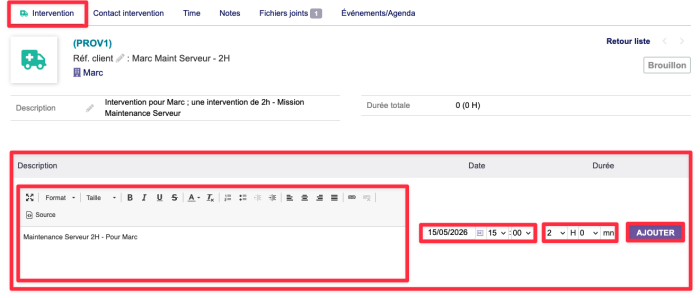
Enter a planned time
- Open the relevant item (intervention, ticket, etc.)
- Click on the TimeKeepr tab
- Fill in the fields:
- Planned date
- Planned duration
- User involved
- Comment (optional)
- Confirm with the Add button
|
You must create an intervention or other record at the base of the form; otherwise, adding it via the "Time" sub-tab will not be possible.
|
|
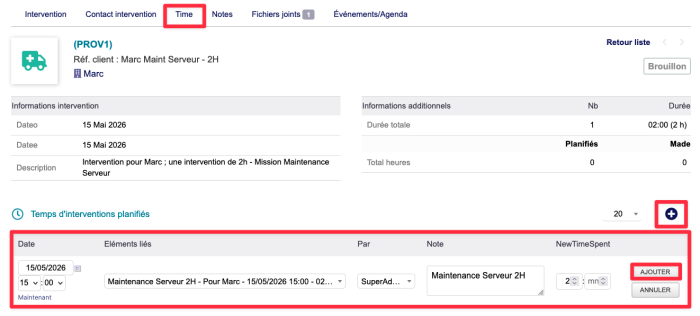
In this tab you will need to fill in the following fields:
- Date & Scheduled Time
- Item Affected
- Completed By...
- Note (optional)
- Estimated Completion Time
|
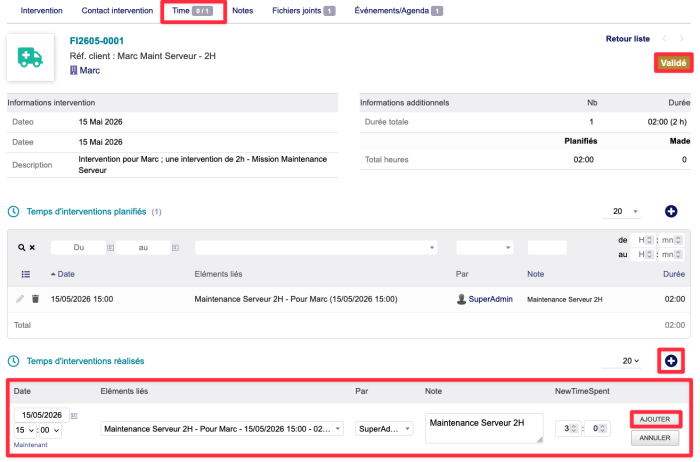
Enter Time Tendered
- From the TimeKeepr tab of the item
- Fill in the fields:
- Date completed
- Time taken
- User who performed the task
- Comment (optional)
- Confirm with the Add button
|
In this tab you will need to fill in the following fields:
- Date & Time completed
- Item affected
- Completed By...
- Rating (optional)
- Time taken
|
|
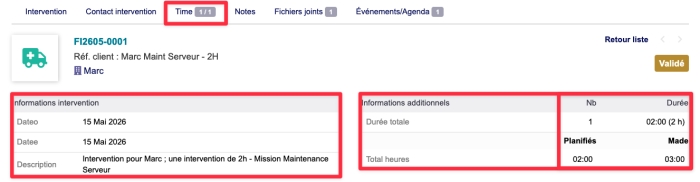
The top of the page will allow you to view the record data, including the completion time and the planned time.
|
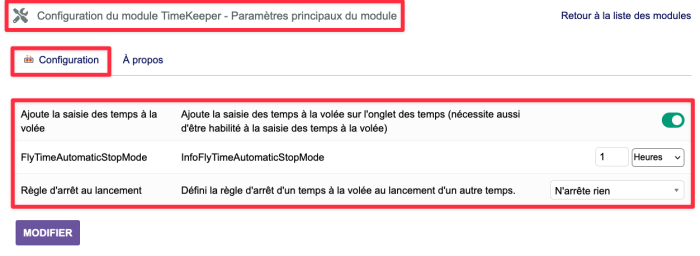
Saisie du temps à la volée
La saisie du temps à la volé permet d'ajouter du temps passé directement sur le temps en cours de réalisation.
Ce temps d'ajouts ce définit directement depuis les paramètres du plugin TimeKeepr.
|
Si Fonction Activée il es possible de définir l'ajout en :
|
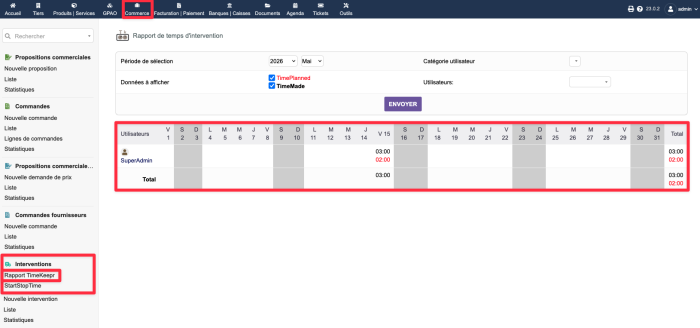
Dans chaque menu gauche associé à un élément, un nouveau menu Rapport TimeKeepr
est ajouté permettant d'accéder à une vue globale des temps sur un mois :
- Affichage des temps planifiés
- Affichage des temps réalisés
- Filtrage par type d'élément (interventions, tickets, etc.)
- Visualisation sur une période mensuelle
|
L'onglet rapport TimeKeepr vous affichera sous forma de tableau les temps planifiés et réalisés sur un mois, ainsi que les écarts entre les deux.
Vous pourrez également filtrer les données par type périodique (mois, semaine, jour, etc.) ; catégoriser d'utilisateurs ou bien utiliser directement.
|
Cette vue facilite :
- Le pilotage de l'activité
- L'analyse des écarts planifié / réalisé
- Le suivi de la charge de travail
Éléments compatibles
| Élément |
Onglet de saisie |
Rapport mensuel |
Saisie des temps à la volée
|
| Fiche d'intervention |
✅ |
✅ |
✅
|
| Ticket |
✅ |
✅ |
⛔
|
| Ordre de Fabrication natif |
✅ |
✅ |
✅
|
| Factory (plugin) |
✅ |
✅ |
✅
|
| Equipement (plugin) |
✅ |
✅ |
✅
|


