|
This module improves the management of Dolibarr's native job sheets by adding:
- a calendar view (in week and month mode)
- drag & drop and line enlargement functions
- user assignment
- contact/address assignment
- quick creation of a job (and one or more job lines)
- quick modification of a job and the job detail line
- bulk change of statuses and other elements
|
Overview
The MySchedule module allows you to manage work assignments and, more precisely, the time scheduled and completed by employees.
Jobs have four stages specific to mySchedule:
- No User Assigned: There are no users associated with the job
- Not Yet Scheduled: There is at least one user associated with the job, but they are not yet assigned to a job detail line
- Job lines are all assigned to one (or more) users
- Completed: The times completed by the users have been entered on the job
Each of these stages is associated with a color code that is used to display jobs in the calendar view

|
It is possible to filter by week, month, stakeholder, third party, stage and intervention status
|
Settings
Access the module's administration by clicking on the icon at the end of the line.
|
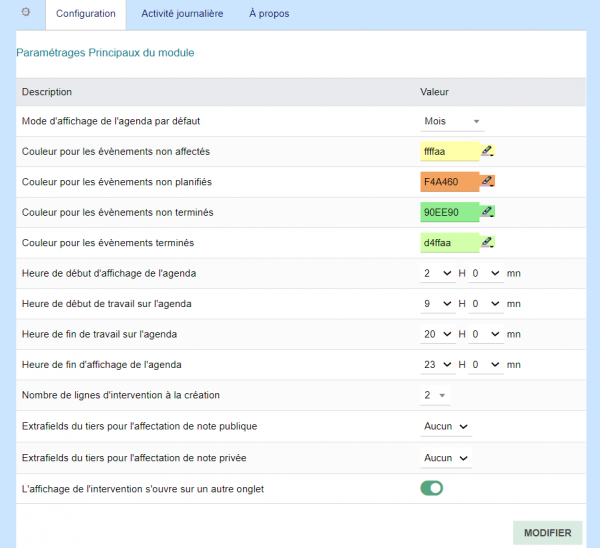
From this screen, you can configure:
- the default access to the calendar view for a week or a month
- the 4 colors corresponding to the different states of the intervention
- the time slots (start and end of day, start and end of activity) for the weekly view
- the number of intervention lines (from 1 to 4) that can be entered when creating the intervention from the calendar
- the number of contacts/users that can be displayed in the lists before concatenating them in a tooltip
- the extrafields available on the third party to populate the public and private notes of the intervention (useful for access codes and instructions specific to each intervention for this third party)
- define whether you want to open the intervention on the same tab or a different one from the editing pop-up
|
Main Screen
Accessible from the Commercial/Intervention/mySchedule menu, this is the main screen of mySchedule.
|
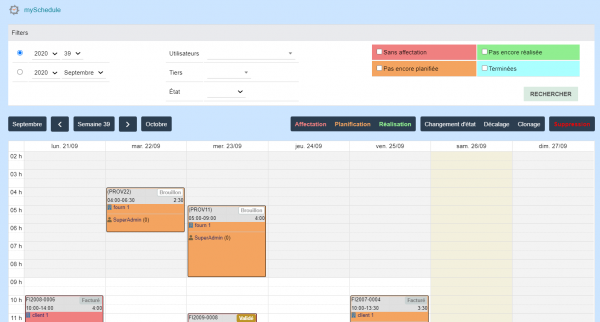
It is divided into four parts:
- Filtering and selecting events
- Navigating between weeks and months
- Bulk action on events
- The calendar view for either a week or the entire month
The following actions can be performed in the calendar view:
- Create a new intervention
- Modify a new intervention (with a link to the classic intervention interface)
- Move an intervention (drag & drop)
- Resize an intervention
|
Filtering and Selection

The filtering interface is divided into three parts:
| on the period and status to display
|
on the native elements of the interventions
|
on the associated statuses managed by mySchedule
|
- the current week and year
- the current month and year
- the status of the intervention (draft, validated, invoiced, completed)
|
- The third party of the intervention
- A user associated with the intervention
- An external contact or address associated with the intervention
|
You can select multiple items at once; if none are selected, they are all selected.
|
These filters are found in the intervention lists for third parties and users.
|
|
For the remainder of this document, we will use the term "state" or "status" to refer to the status of the intervention and "stage" to refer to the progress stage of mySchedule.
|
Navigation and Shortcuts
Bulk Actions
MySchedule allows you to perform bulk actions on work items.
|
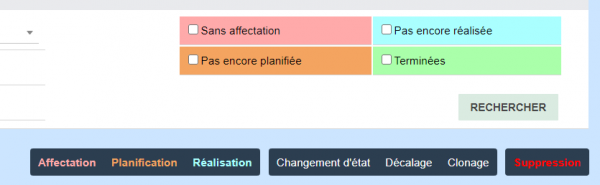
Mass actions are accessible from the main screen using the buttons on the screen.
|
The first group of actions corresponds to mass changes specific to mySchedule. The font color corresponds to the step where this action is performed. * Assignment: Allows you to manage the workers associated with the intervention
- Scheduling: Allows you to assign the time to be completed at the event level to one or more employees
- Execution: Allows you to assign the time completed at the event level to one or more employees
The second group corresponds to actions specific to Dolibarr:
- Changing the status of the intervention
- Shifting the intervention lines in time
- Cloning an intervention and its intervention lines (in two steps)
Mass deletion of intervention lines is part of this second group but is set aside for security reasons...
Events in the Calendar View
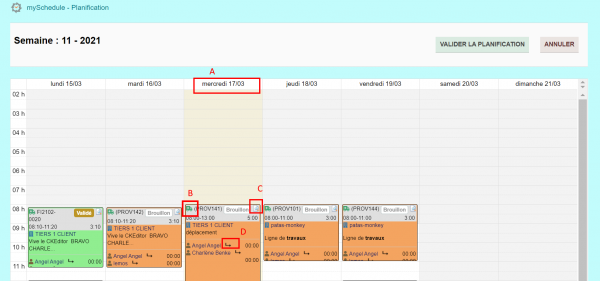
The calendar view displays the event detail lines. Each event detail line is defined by a start date and time, a duration, a description, and the event to which it is attached.
|
|
In the rest of the document, the term "event" will be used to refer to a native Dolibarr intervention line.
|
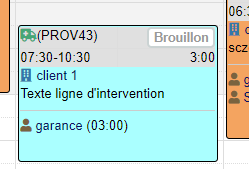
|
Each event is divided into three parts:
- The gray block containing the intervention line information
- The intervention reference and its status (first line)
- The start and end times of the intervention line and its duration (second line)
- The main description of the intervention is shown as a tooltip of the icon
- Additional information about the intervention
- The third party associated with the intervention
- The description of the intervention line
- The contract or project, if one has been entered
- The participants area (user only)
- The planned and actual durations, if they have already been entered
|
|
in week view, the event display may be truncated because the height of the event corresponds to its duration
|
|
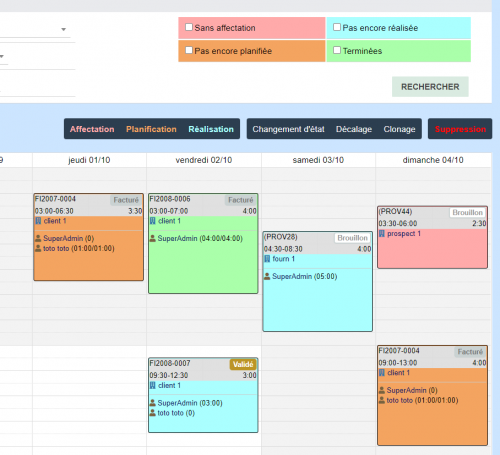
|
The calendar displays the events occurring during the period.
- In week view, they are positioned according to their start and end times. You can directly modify the date, start time, and duration/end time of the event by dragging and dropping them and enlarging them. Please note that some information may be truncated in this view due to the size of the event and its duration.
- In month view, they are positioned one after the other. You can directly modify the start date of the event by dragging and dropping them.
|
Creating an Intervention
When you click a button at the day level, an intervention creation pop-up window appears. This allows you to enter the following information:
- Third party associated with the intervention (if the Fullcalendar view is filtered to a third party, this third party is assigned by default)
- Description of the intervention (simple text field)
- Public and private notes (simple text field)
- One or more intervention lines (number can be configured) with the following columns:
- The participant/user associated with the intervention line (optional entry; by default, the user entering the information or the one filtered in the display)
- Description of the intervention line
- The start date and time of the intervention line (the date is taken from the day that was clicked)
- The duration of the intervention
|
|
The start time of the intervention line is taken from the time slot clicked on the weekly view, for the monthly view, it corresponds to the start of the configured working hour
|
Main Tab
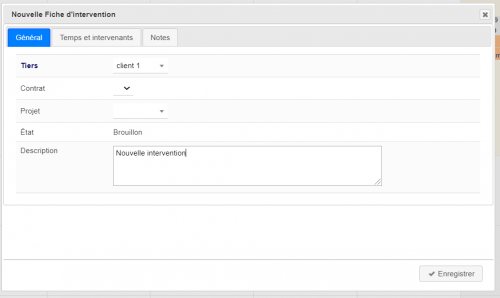
|
The first tab allows you to enter information specific to the intervention:
- The third party associated with the intervention
- The description of the intervention
- The list of contacts/addresses related to the intervention
If they are active in Dolibarr, contracts and projects also appear in this tab.
The status of the intervention is draft by default.
By default, the intervention is always in draft status.
Intervention Lines / Events Tab
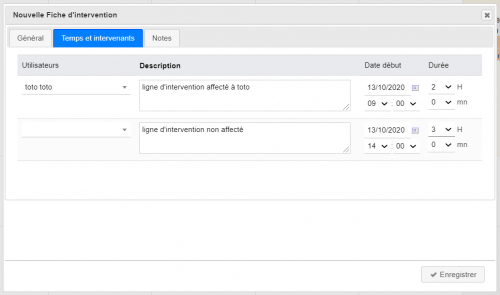
|
The second tab allows you to enter one or more intervention lines (depending on the settings).
The data that can be entered for each line is:
- A participant associated with the intervention line
- The description, which can be entered in WYSIWYG
- The intervention start date and time
- The duration of the intervention line
|
|
If you enter a participant, they are automatically associated with the intervention sheet, and the times entered for the line are assigned to them as "planned"
|
|
Once the entry is validated, the intervention lines appear on the calendar. There are as many events as there are intervention lines. 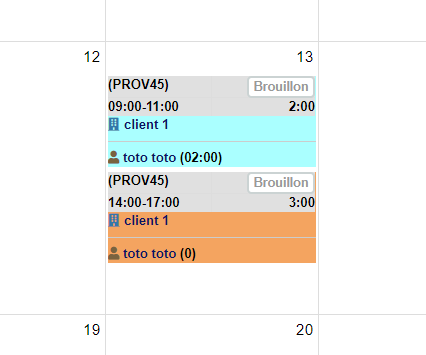
Modification of an intervention
When you click on an event, a pop-in window appears to edit the intervention.
The window's banner displays the intervention's reference and the color of the event's stage.
The pop-in has three tabs:
- a tab for data specific to the intervention (third party, status, contract, and project if active)
- a user management tab associated with the intervention and the intervention line
- a tab for public and private notes
A badge appears on the user and note tabs if they are entered.
|
|
It is also possible to open the intervention in "classic" mode (either on the same tab or another, which is configurable).
|
Main Tab
|
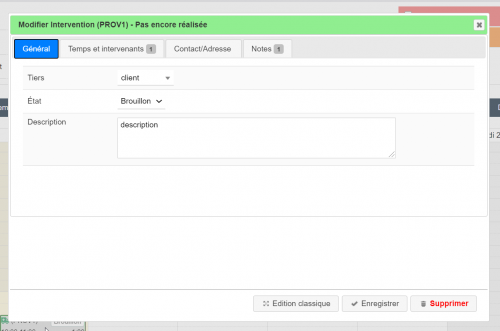
The first tab allows you to modify the following elements:
- The third party associated with the intervention
- The description of the intervention
- The status of the intervention
If they are active in Dolibarr, contracts and projects also appear in this tab.
Si il y a des informations saisies au niveau des onglets annexes, un badge apparait indiquant le nombre d'information présente sur celui-ci
Il est possible de supprimer directement la ligne d'intervention (voir l'intervention si celle-ci n'a plus de ligne) à partir de cet écran (bouton supprimer)
|
Onglet des collaborateurs
|
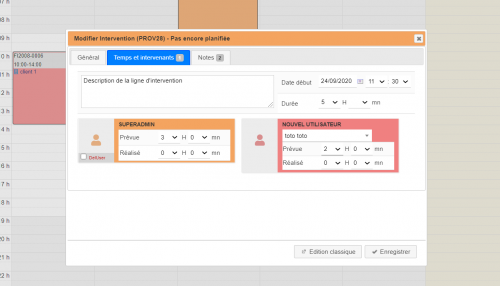
Le deuxième onglet permet à la fois de modifier la ligne d'intervention (description, durée et la date et heure de début d'intervention) et sur les intervenants de l'intervention.
Sur les intervenant il est possible de:
- Ajouter un intervenant
- Supprimer un intervenant
- Saisir la durée affecté à un intervenant
- Saisir la durée réalisé par un intervenant
Les saisies réalisées sur cet écran permet de modifier l'étape de l'évènements
|
Onglet des contacts/adresses
|
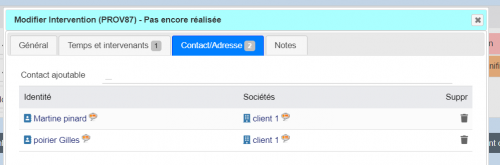
Le troisième onglet permet de gérer la sélection des contacts/adresses associé à l'intervention.
Sur les intervenant il est possible de:
- Ajouter une ou plusieurs adresse
- Supprimer une ou plusieurs adresse
|
Gestion des actions en masse
Sur la vue mySchedule il sera possible de réaliser des actions en masse :
- La suppression des lignes d'interventions et de l'intervention si celle-ci n'as plus de l'intervention associé
- Le déplacement sur une autre semaine des lignes d'interventions
- Le clonage des lignes d'interventions et de l'intervention associé
- Le changement du (ou des) intervenant sur la ligne d'intervention
- Le changement du statut de l'intervention (brouillon, validé, facturé, terminé)
Cette mise à jour en masse se fera ainsi :
- On filtre sur la vue fullCalendar la semaine qui contient les éléments à modifier
- On appuie sur l'un des boutons en haut à droite de l'écran
- Une fenêtre affichant les évènements apparait (il n'est pas possible de déplacer les éléments), chaque évènement est sélectionnable par un simple click sur celui-ci,
- Il est possible de cocher/décocher en masse une ligne (journée) ou toute la semaine pour séléctionner les éléments à traiter
- Pour la modification des utilisateurs une listes déroulantes d'utilisateur présaisie que l'on peu changer
- Pour le clonage et le déplacement il faudra saisir le numéro de semaine et l'année sur laquel sera déplacé ou clonée les évènements
- Une fois l'écran validé, on revient sur la plage de départ
Modification de statut
Décalage d'un évènement
Clonage d'intervention
Suppression d'évènements
Gestion des temps collaborateurs
Affectation des utilisateurs
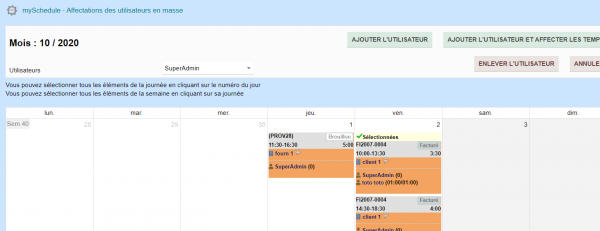
Planification des collaborateurs
Saisie des temps réalisées
Onglets d'interventions
Sur les tiers et les utilisateurs un onglet myShedule affiche la liste des interventions du tiers/utilisateur.
Il sera possible de filtrer cette liste
Liste des interventions d'un tiers
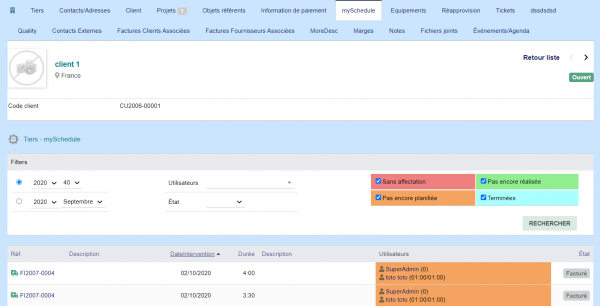
Liste des interventions d'un utilisateur
|


