
|
This module allows you to generate a new BOM from a default template and a definition of possible choices.
You must first define a list of alternative product choices based on a product category for the BOM's component lines.
The module is based on the product's default BOM; it serves as a template to which categories are assigned for its lines.
Once this configuration is complete, you can create a new BOM by selecting alternative products from a drop-down list. Once the selection is validated, you will be taken to the newly created BOM.
This module is compatible with the Factory module, to which it adds similar functionality in terms of product composition.
|
Use for BOMs
Configuring a Product BOM
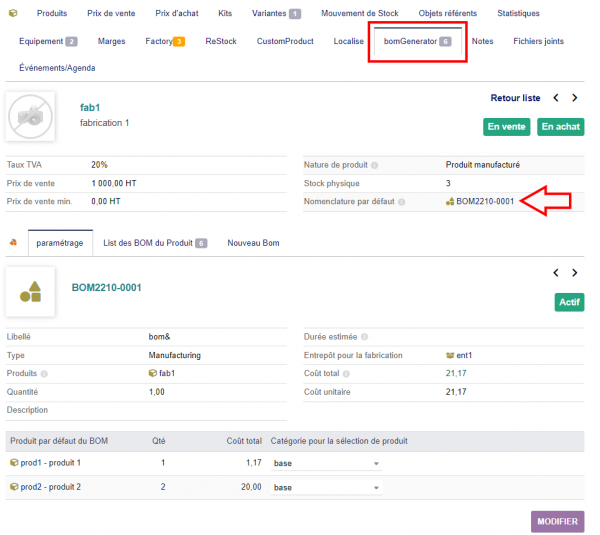
The BOMGenerator module adds a new tab to the product sheet.
The number displayed on this tab indicates how many BOMs are associated with this product.
|

|
The BomGenerator tab displays the default BOM associated with the product. Without this definition, the module cannot be used.
|
The BomGenerator tab has three sub-tabs:
- The first tab allows you to select a product category for each item in the BOM. To do this, select a category from the associated drop-down list and save the selection.
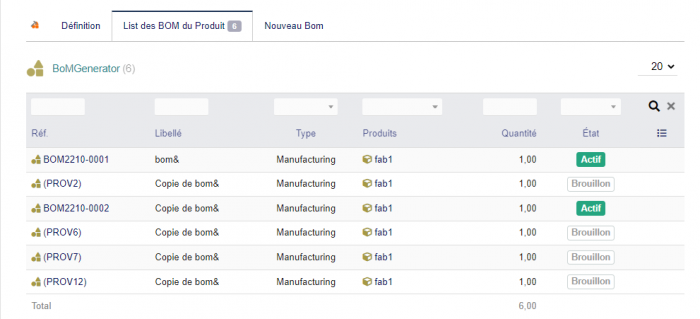
- The second tab displays the list of BOMs associated with this product.
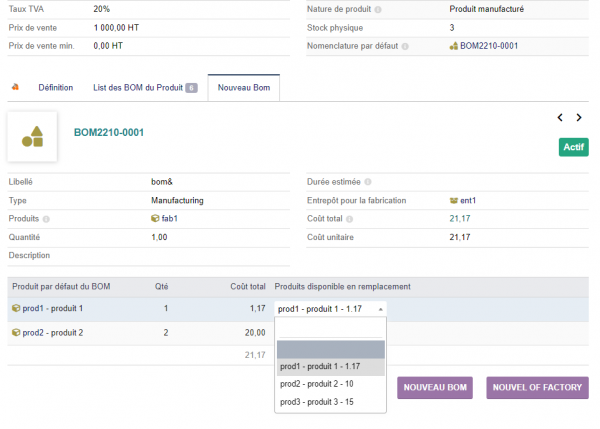
- The last tab allows you to create a new BOM from the default BOM and the settings made in the first tab. |}
List of BOMs for a product
|
This tab displays the list of product BOMs. As with all Dolibarr tables, you can select the columns to display, set pagination if there are many BOMs, filter specific BOMs, and sort the rows by clicking on the column header.
|
Création d'un nouveau BOM
|
Le dernier onglet permet à proprement parler de créer un nouveau BOM.
On sélectionne les composants que l'on souhaite utiliser et si il n'existe pas encore un BOM avec ces composants celui-ci est crée. Dans le cas contraire le module redirige vers le BOM déjà existant.
|
Créer un OF à partir d'un BOM personnalisé
Il est aussi possible si le module est présent de créer directement un Ordre de Fabrication dans Factory à partir du dernier onglet de BomGenerator.
Utilisation avec Factory
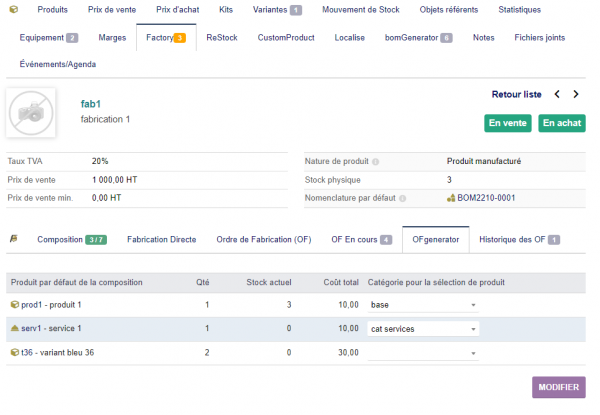
Configuration pour la composition d'un produit
|
De la même manière que pour les BOM, il est possible de définir sur l'onglet "OFGenerator" de l'onglet Factory du produit des catégories associés à la composition.
|
Modifier la définition lors de la création d'un OF
Il est toujours possible au niveau de l'OF si celui-ci est crée par un BOM d'en modifier la composition grace au bouton [Modifier les composants de l'OF]
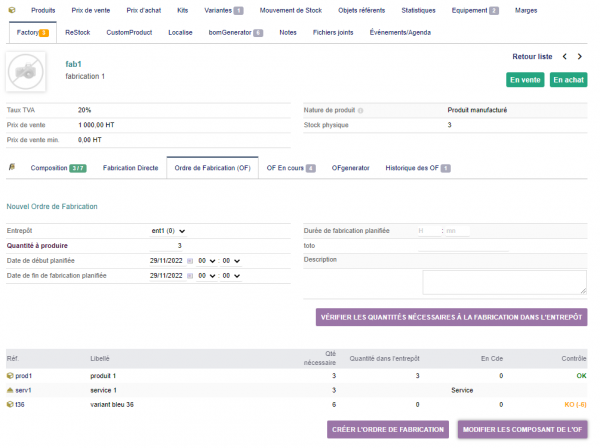
Un nouveau bouton apparait lorsque l'on vérifie le stock de ses composants.
|
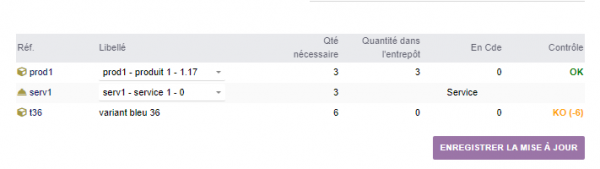
Après appuie sur ce bouton, il est possible de sélectionner les produits de la catégorie produits défini.
|
Changement de la composition d'un OF
|
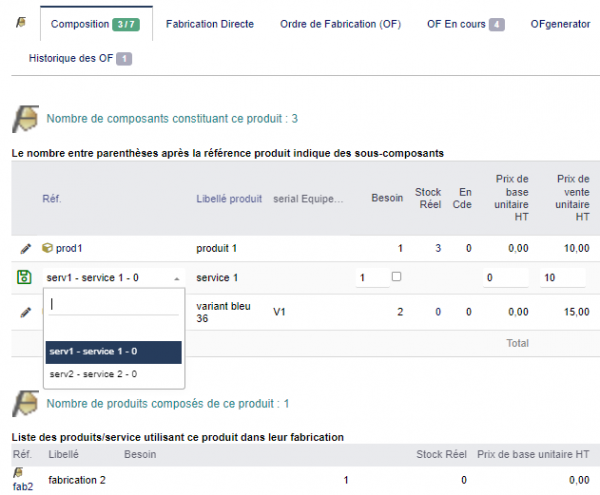
Depuis la version 3.1 de Factory, il est possible de modifier rapidement chaque ligne de la composition mais il apparait alors la totalité des produits possible dans la liste.
Avec le module BOMGenerator il est possible de limiter la liste aux produits présent dans la catégorie définis sur l'onglet OFGenerator
|
|


