
|
DoliSmart allows you to access your Dolibarr data from a smartphone (iOS or Android).
The data displayed on your smartphone is customizable:
- Widget selection on the main screens,
- Column selection on the search lists based on the screen width
- Field selection on the detail screens and customization (label changes, highlighting, bolding)
Data is accessible not only based on native permissions defined for users but also specifically for each field and other widgets
The interface is intuitive and allows you to navigate between Dolibarr elements (linked clickable elements), to access documents associated with the parts using ergonomics adapted to a smartphone.
It is finally possible to enter notes associated with an item, to sign interventions and shipments, to send an email from dolibarr (or the smartphone)
|
Overview
This entire solution is divided into three parts:
- A module to install in your Dolibarr (like any other module) allowing you to customize the displays in the second part. This module can be ordered from the Dolistore and gives you access to updates for this module for 3 years: https://www.dolistore.com/product.php?id=2464
- A smartphone application (iOS or Android) allowing you to access your Dolibarr data according to the user's permissions identified in the application and the settings defined in the module. The applications are available on Apple and Android platforms.
- An annual subscription can be ordered from our store: https://dolismart.com/index.php/boutique/
If you need multiple licenses, you can contact us for a preferential volume rate.
Communications between the two elements are done via Dolibarr's native APIs but also specific APIs present in the module.
The Smartphone application retrieves the native dolibarr theme or the one you have defined on your environment.
It is finally possible to access several Dolibarrs (or the same Dolibarr with several user profiles) from the same interface. Please note that this feature is limited to 3 environments/profiles.
Settings in Dolibarr
To allow Dolibarr to communicate with the mobile application, it is necessary to activate the native API modules.

The DoliSmart module also provides a set of APIs necessary for the mobile application, which should also be activated.

User Settings
To allow a user to access the DoliSmart application from their smartphone, a set of actions must be carried out on the user's account
Generating an API key for the user
Once the REST API management module is enabled, you must select the user you wish to use to log in from the mobile application and generate an identification token for them.

User Authorization Management
Access to user authorizations is done from the permissions tab of their file

It is advisable to check several authorizations for use, namely:
- access to his/her authorizations

- access to the GED to allow him to both access documents, but also to upload documents from the smartphone into the element

Dolibarr Update/Corechange
DoliSmart has been compatible with Dolibarr since version 18, but for versions prior to V22, you must update your Dolibarr with the files in the Corechange folder located in the module directories.
Some features, such as searching for an invoice based on the third-party name, may not work on versions prior to V22.

|
After each update of the Dolismart module, it is necessary to deactivate and then reactivate it to ensure its proper functioning.
|
Dolismart Module Configuration
In the Dolismart settings, you will find four tabs:
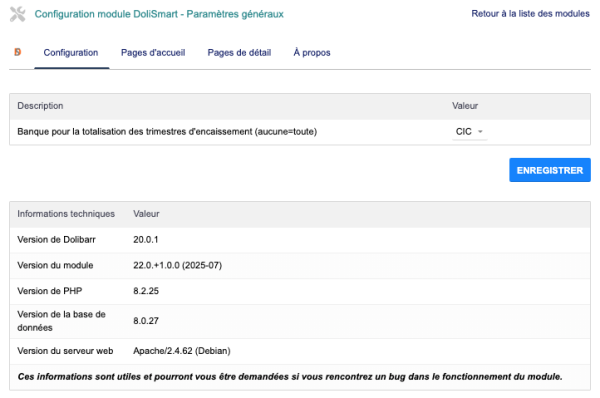
General Configuration
This is a tab dedicated to all the elements of the mobile application, mainly the number of records displayed or a default selection.
Home Page Configuration
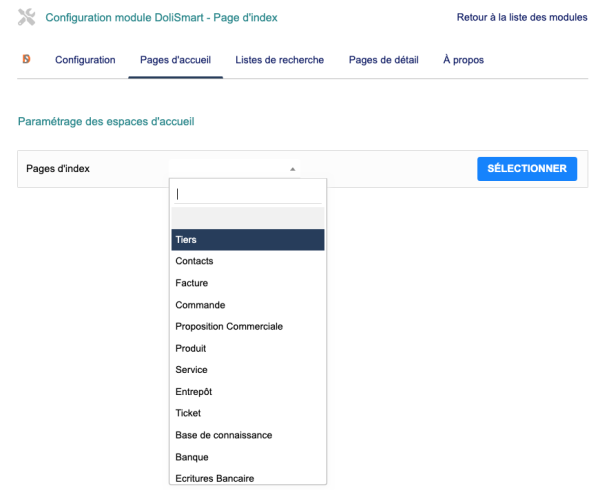
Similar to the spaces in dolibarr, the doliSmart application has a page grouping information specific to a single element (third-party space, products, invoices, etc.).
This home page contains a search box and a set of widgets that you can choose to display or not.
This selection is made from the home pages configuration.
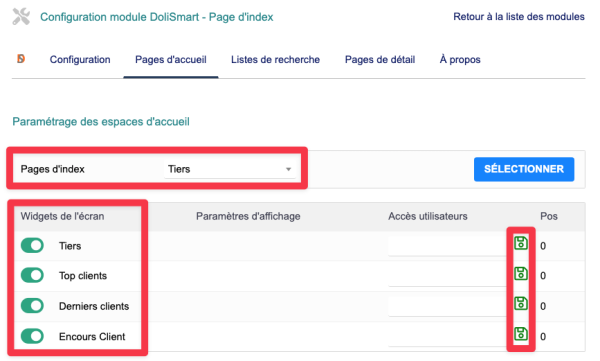
You must first select the element you wish to configure, then activate or deactivate the widgets.
It is also possible to only allow access to a widget to a set of people (individual selection) or to a user group defined in dolibarr.
Please note that managing access authorizations requires saving the line with the green save icon at the end of the line.
| Indexing choice for the home page
|
Display options
|
|
|
|
Search List Configuration
You can configure the fields that will be displayed during searches on the Dolismart application screen, based on the selected index page.
As well as the display setting (IF ACTIVE FIELD: Rename the field / choice of alignment & width / positioning).
Access Grant Users and User Group.
If you make a change to it, remember to save the change at the end of the line.
| Search List Options
|
Display Options
|
|

|

|
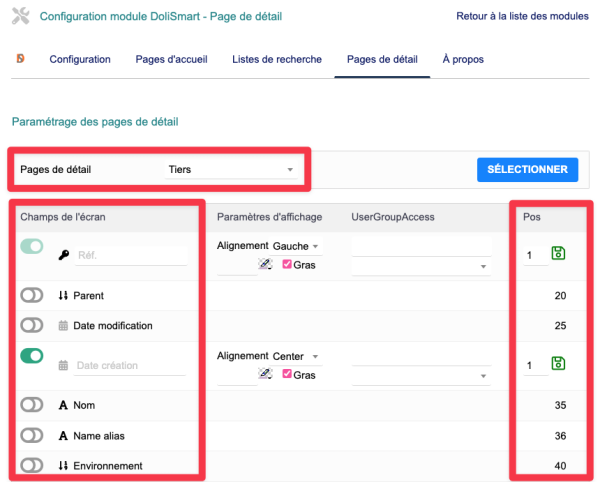
Configuring Detail Pages
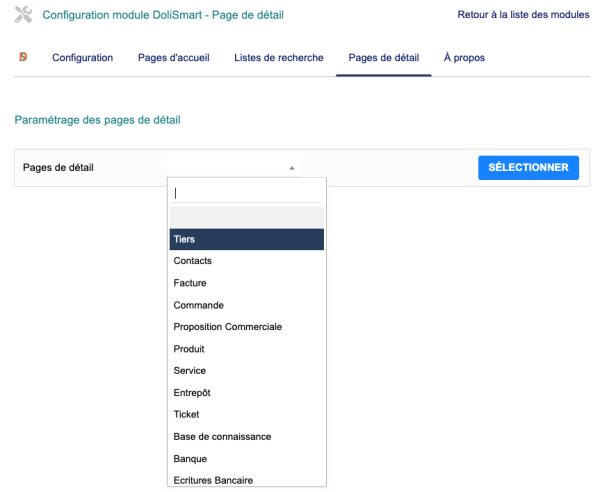
You can configure the fields that will be displayed on the Dolismart application screen based on the selected index page.
As well as the display setting (IF ACTIVE FIELD: Rename field / Bold text / Color).
Access Grant Users and User Group.
If you make a change to it, remember to save the change at the end of the line.
| Detail Page Selection
|
Display Options
|
|
|
|
Mobile App Screens
Home Screen
| Structured Main Menu
|
Customized Access Based on User Rights
|
Customizable Visual Interface
|
|
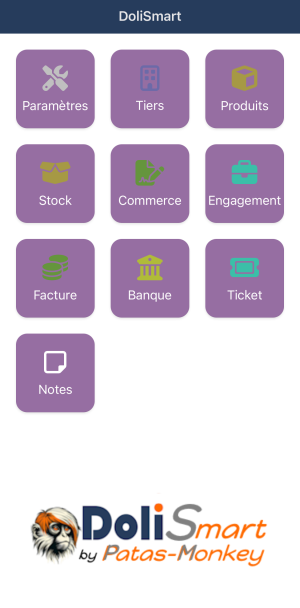
The DoliSmart menu is organized into sections, mirroring the Dolibarr structure: third-party, products, invoices, etc.
|

As mentioned previously, the home screen adapts based on the user's access rights. Each user only sees the modules and information they are authorized to access.
|
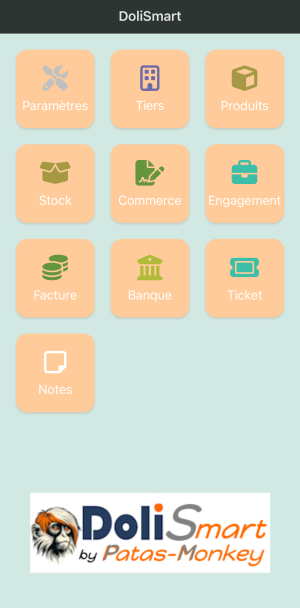
The interface colors automatically adjust based on the visual customization of your Dolibarr instance, ensuring consistency with your usual environment.
|
Settings Screen
| Settings Menu
|
Account Details
|
Account Details
|
|
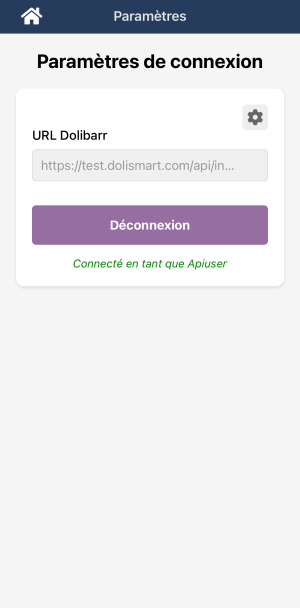
The DoliSmart settings menu allows you to view the currently active session or connect to a new Dolibarr instance.
|

This tab allows you to view recorded sessions (maximum 3), delete them, add new ones, or modify existing ones.
|
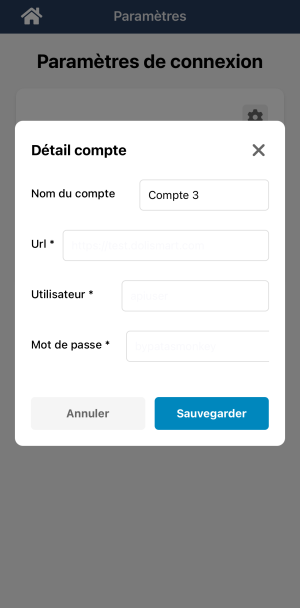
This tab displays information related to the selected account: the custom name (or the default one), the Dolibarr instance connection URL, and the login credentials (username and password).
|
Icons present in the DoliSmart application
Icons present in the DoliSmart application
Icons are used consistently across multiple sections of the app.
Details Screen Icons
| Icon |
Function |
Description
|
 |
Number (Number) |
Number of sales
|
 |
Excl. Tax (Excluding Tax) |
Calculated amount excluding tax
|
 |
Incl. Tax (Including All Taxes) |
Final billable amount including tax
|
 |
Address / Google Maps |
Clickable link to Google Maps with the address entered
|
 |
Phone |
Makes a call if a number is entered (on mobile)
|
 |
Mail (native app) |
Opens the phone's messaging app
|
 |
Customer |
Designates a confirmed customer
|
 |
Prospect |
Third party in the sales prospecting phase
|
 |
Supplier |
Designates a supplier (purchasing, logistics, etc.)
|
 |
All elements |
View of all elements
|
 |
Annual Calendar |
Filtered or sorted view by year
|
 |
Quarter |
Group by quarter (Q1, Q2, etc.)
|
|
Space Screen Icons
| Icon |
Meaning |
Description
|
 |
Calendar |
Overview of events associated with the third party (tasks, appointments, etc.)
|
 |
Mail via Dolibarr |
Sends an email via the integrated Dolibarr messaging interface
|
 |
Documents / Attachments |
Access linked files & upload files
|
 |
Action |
Action associated with the item (signature, status update, etc.)
|
|
These icons are also visible in other contexts such as purchase orders, invoices or sales reports.
The visual uniformity of the icons in DoliSmart allows for efficient navigation, while reducing the learning curve of the application.
Element Space Screens
The space screens all have the same format.
| Screen example
|
Elements present in a space screen
|
|
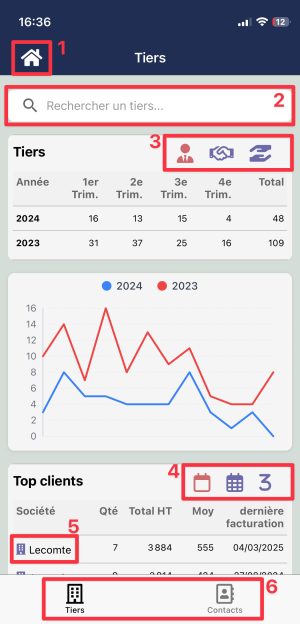
The DoliSmart menu is organized into sections, following the Dolibarr structure: third-party space, products, invoices, etc.
|
- 1: Return to the Dolismart home page
- 2: Element search area
- 3: Table filter area including the graph
- 4: Table filter area by period (all, year, quarter)
- 5: Clickable elements to access their details
- 6: Navigation on other menu items
As mentioned previously, the spaces screen adapts according to the settings defined in the DoliSmart module.
|
Search Screens
The search screens all have the same format.
| Example of a search screen
|
Elements present in a search screen
|
|
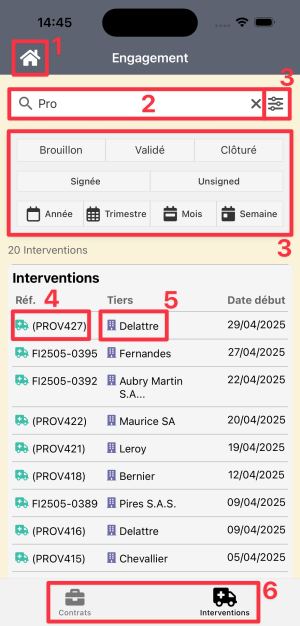
The DoliSmart menu is organized into sections, mirroring the Dolibarr structure: third-party, products, invoices, etc.
|
- 1: Return to the Dolismart home page
- 2: Item search area
- 3: Access the item's information sheet
- 4: Access the information sheet of the third party attached to the item (if a third party is associated)
- 5: Navigate to other menu items
|
Element Detail Screens
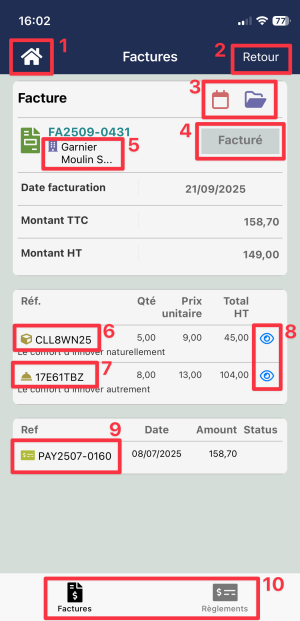
The detail screens all have the same format.
| Example of a detail screen
|
Elements present in a detail screen
|
|
|
- 1: Return to the Dolismart home page
- 2: Return to the previous page
- 3: Pop-up corresponding to the item tabs (here, calendar and attached documents)
- 4: Item status
- 5: Linked Tier sheet
- 6: Product sheet
- 7: Service sheet
- 8: Preview icon
- 9: Payment sheet
- 10: Navigation to other menu items
As mentioned previously, the details screen adapts based on the user's access rights. Each user only sees the modules and information they are authorized to access.
|
DoliSmart Sections
Third Party Section (Third Party Area and Contacts)
This section contains both the Dolibarr Third Parties and their contacts.
| Third-Party Space
|
Third-Party Details
|
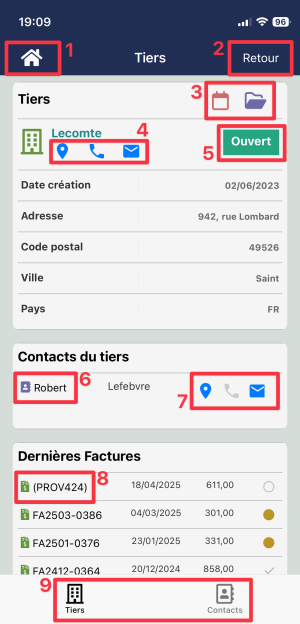
Elements present in a Third-Party Details screen
|
- Third-Party Search Box
- Quarterly Table of New Third-Parties
- Selection Button by Customer, Prospect, or Supplier
- Monthly Chart of New Third-Parties
- Top Customers
- Selection Button by the Entire Period, Year, or Current Quarter
- Latest Updated Customers
- Outstanding Customers
|
|
- 1: Return to the Dolismart home page
- 2: Return to the previous page
- 3: Popup corresponding to the item tabs (here, calendar and attached documents)
- 4: Tier contact information (address; telephone number; email address accessible from the smartphone)
- 5: Item status
- 6: Table of items associated with the item (here, the Third Party's contacts)
- 7: Tier contact/address
- 8: Invoice associated with the Tier
- 9: Navigation to other menu items
As mentioned previously, the details screen adapts based on the user's access rights. Each user only sees the modules and information they are authorized to access.
|
| Espace Contact
|
Détail Contact
|
- Zone de recherche des contacts
- Tableau trimestriels des nouveaux contacts
- Graphique mensuel des nouveaux contacts
- Derniers contacts mis à jour avec la fiche contact et leur tier associé.
|
- Tableau d'information du Contact
- Popup Évènements
- Popup Documents
- Ligne de détail
|
Section des Produits (Espaces Produits et Services)
Cette section regroupe à la fois les produits et les services.
Attention la gestion des stocks et des expéditions que l'on retrouve dans le menu produits de Dolibarr se trouve dans un autre espace de DoliSmart
| Espace Produits
|
Détail Produit
|
- Zone de recherche des produits.
- Tableau des dernier produits mis à jours.
- Tableau des top produits.
|
- Bandeau d'information
- Popup Évènements
- Popup Documents
- Ventes facturés du produit par trimestre (nombre de vente, quantités vendues, montant ttc)
- Graphique mensuel des ventes du produit.
|
| Espace Services
|
Détail Service
|
- Zone de recherche des services.
- Tableau des dernier services mis à jours.
- Tableau des top services.
|
- Bandeau d'information
- Popup Évènements
- Popup Documents
- Nombre de vente facturé du produit par trimestre (nombre, quantité, montant ttc)
- Graphique mensuel des ventes du service.
|
Section Entrepôts (Espace des Entrepôts et des Expéditions)
Cette section, se trouvant dans Dolibarr parmi celle des produits, a été séparée pour plus de lisibilité
| Espace Entrepôt
|
Détail Entrepôt
|
- Zone de recherche des entrepôts.
- Liste des dernier entrepôts mis à jours.
- Tableau de mouvement de stock par trimestre avec filtrage.
- Par nombre.
- Par quantité.
- Par montant de la valeur mouvement.
- Graphique mensuel des mouvement de stock
- Tableau des top produits.
|
- Tableau d'information de l'entrepôt.
- Popup Évènements
- Tableau de mouvement de stock de l'entrepôt par trimestre avec filtrable par le nombre de mouvement, quantité et valorisation.
- Graphique mensuel des mouvement de stock de l'entrepôt.
- Tableau des produits dans l'entrepôt .
|
| Espace Expéditions
|
Fiche d'une Expédition
|
- Zone de recherche des expéditions
- Tableau des expéditions par trimestre avec filtrage
- Par nombre.
- Par quantité.
- Par valorisation.
- Graphique mensuel des mouvement de stock
- Tableau des dernière expéditions avec filtrage
|
- Tableau d'information de l'expédition
- Popup Évènements
- Popup Documents
- Popup Signature
- Liste de différent produit liée à l'expédition (avec infos en liste)
- Tableau des objets liés
|
Section Commerce (Espace Devis et Commandes Client)
| Espace Proposition commercial
|
Détails Devis Clients
|
- Zone de recherche des propositions.
- Tableau des devis clients par trimestre avec filtrage (Nb, Montant HT et TTC).
- Graphique mensuel
- Liste des dernières propositions
|
- Bandeau d'information
- Popup Évènements
- Popup Documents
- Ligne de détail
|
| Espace Commandes
|
Détails Commande
|
- Zone de recherche des commande
- Tableau des commandes par trimestre avec filtrage (Nb, Montant HT et TTC)
- Graphique mensuel des commande
- Liste des dernières commandes
|
- Tableau d'information de la Commande Client
- Popup Évènements liés au devis
- Popup Documents liés au devis
- Ligne de détail
|
Section Engagement (Espace Contrats et Interventions)
Cette section, se trouvant dans Dolibarr parmi celle du Commerce, a été séparée pour plus de lisibilité
| Espace Contrats
|
Détails Contrat
|
- Zone de recherche des contrats
- Tableau des contrats par trimestre avec filtrage (Nb, Ouvert, Fermer)
- Graphique mensuel des contrats
- Liste des dernières contrats
|
- Tableau d'information du Contrat
- Popup Évènements liés au contrat
- Popup Documents liés au contrat
- Ligne de détail
|
| Espace Interventions
|
Détails Intervention
|
- Zone de recherche des interventions
- Tableau des interventions par trimestre avec filtrage (Nb, Nb d'heur, Nb jours)
- Graphique mensuel des interventions
- Liste des dernières interventions
|
- Tableau d'information de l'Intervention
- Popup Évènements liés à l'intervention
- Popup Documents liés à l'intervention
- Popup Signature liés à l'intervention
- Ligne de détail
|
Section Facture (Espace Factures et Règlements)
| Espace Factures
|
Détails Facture
|
- Zone de recherche des factures
- Tableau des factures par trimestre avec filtrage (Nb, HT, TTC)
- Graphique mensuel des factures
- Liste des dernières factures
|
- Tableau d'information de Facture
- Popup Évènements liés de facture
- Popup Documents liés de facture
- Ligne de détail
|
| Espace Règlements
|
Détails Règlement
|
- Zone de recherche des règlements
- Tableau des règlements par trimestre avec filtrage (Nb & Montant)
- Graphique mensuel des règlements
- Liste des derniers règlements
|
- Tableau d'information de l'Intervention
- Popup Évènements liés à l'intervention
- Ligne de détail
|
Section Banque (Espace Comptes et Ecritures)
| Espace Comptes
|
Détails Compte
|
- Zone de recherche des comptes
- Liste des comptes
- Tableau des écritures comptable par trimestre avec filtrage (A, D, C)
- Graphique mensuel des comptes
- Liste des dernières interventions
|
- Tableau d'information du Compte
- Popup Documents liés à l'intervention
- Ligne de détail
|
| Espace Ecritures
|
Détails Ecritures
|
- Zone de recherche des écritures
- Tableau des écritures par trimestre avec filtrage (A, D, C)
- Graphique mensuel des écritures
- Liste des dernières écritures
|
- Tableau d'information de l'Ecriture
- Ligne de détail
|
Section Calendrier (Liste évènements et Vue Agenda)
Dans l'espace Calendrier, vous trouverez les onglet :
| Liste des évènements
|
- Zone de recherche d'un évènement
- Liste des dernier évènements
|
| Détails évènement
|
- Tableau d'information de l'Intervention
- Popup Documents liés à l'intervention
- Ligne de détail
|
| Vue Agenda
|
- Calendrier avec filtrage (Jour, Semaine, Mois)
|
Section Ticket (Espace Ticket et Base de connaissance)
| Espace Ticket
|
Détails Ticket
|
- Zone de recherche des tickets
- Tableau des ticket par trimestre
- Graphique mensuel des ticket
- Liste des dernier ticket
|
- Tableau d'information du Ticket
- Popup Évènements liés au ticket
- Popup Documents liés au ticket
- Ligne de détail
|
| Espace Base de Connaissance
|
Détails Base de Conaissance
|
- Zone de recherche d'article
- Tableau des articles par trimestre
- Graphique mensuel des articles
- Liste des derniers articles
|
- Tableau d'information de l'Ecriture
- Popup Évènements liés à l'article
- Popup Documents liés à l'article
- Ligne de détail
|


