
|
CAPM Tool - Composition, Direct Manufacturing, Manufacturing Orders, and Variations
|
Overview
Features
Factory is Dolibarr's CAPM tool that allows you to:
|
|
- Define the composition of a composite product based on predefined products and services.
- Retrieve the purchase and sale prices of component products and their margins, and even update the prices of composite products based on components.
- Launch and track manufacturing with "direct manufacturing" and "production orders" that provide planning.
|
|

|
Factory creates the stock movements for different products:
- Decrease in the stock of products used in a production run
- Increase in the stock of manufactured products.
A dedicated tab allows for display:
|
Factory also provides the functionality of creating product variations: from the product categories defined in the module configuration, Factory creates product variations according to their variants.
Combined with the Project module, Factory allows the recording of compositions on tasks and allows the monitoring of consumption and their transfer to other tasks.
NEW:
The Factory module allows you to view the component tree (and their subcomponents) and all the components that make up the component.
It is possible to associate a Production Order with a project (and track associated production orders from within a project).
Factory Free and Factory Premium
Factory was distributed in a free & limited version and a premium version.
Since the arrival of a native GPAO function (MRP) in Dolibarr, the free version is no longer maintained
Settings
Configuration
Module Feature Configuration
The Factory module allows you to customize the numbering mask for production orders.

|
Factory requires the activation of the numbering and document templates
|
Use of the product declination feature requires declaration on this page of the product categories used.
Factory has a price update tool that can be activated on this same page.
Factory per and to choose the value to use for the price of the components depending on whether they are products or services.
Finally, by enabling the "Select the additional field from which to copy information as a work order description" feature, it is possible to copy the contents of an additional field present on the composite product sheets as a work order description. Select the additional field containing the data here.
|
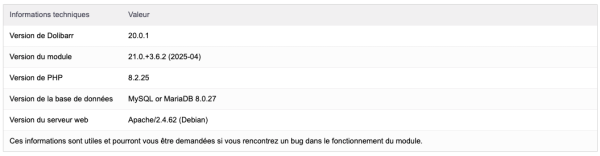
At the bottom of the configuration page, you will find technical information related to your installation. This technical information will be useful and may be requested if you encounter a bug while using the module.
|
Creating Additional Fields
The module supports the creation of additional fields. These fields will allow you to display custom fields on the module's element sheets, where you can record any additional information you may need.
Creating additional module-specific fields follows the same procedure as creating additional fields on native Dolibarr elements.
You can create additional fields for:
- Composition lines
- Production orders
- Production order detail lines
|
|
If the additional fields for the composition lines and the production order detail have the same name (and the same type), their values are passed on when the production order is created.
|
Dictionary
The module relies on Dolibarr dictionaries to assign contacts/addresses to a production order.
Factory offers four types of contacts/addresses by default: Production manager and contributor, internal and external for each.
You can create your own entries from Home > Settings > Dictionaries > Contact/Address Types
|

|
Select "Factory" from the drop-down list, the contact type (internal for a user, external for a third-party contact), a code, and a label that will be displayed in the selection list of the contacts/addresses tab of a Factory.
You can edit existing contact types with the  icon and delete them with the icon and delete them with the  icon. icon.
|
Permissions
Access to module features can be restricted to existing users and groups or those created after the module's installation. Click the – button to add a permission. A granted permission is indicated by a green check mark ( ).
).
User and Group Permissions

|
Access to module features can be restricted to users and groups, from their profile and then the Permissions tab, according to the permissions opposite.
|
Default Permissions

|
The default permissions (Home > Settings > Security > Default Permissions), granted to any user created after the module is installed, if they are not added to a group, are as follows:
|
Getting Started
Factory features are accessible from the main menu tab "Products/Services" or the "MRP/CAPM" menu (depending on the Dolibarr version and the enabled modules). class="wikitable
! colspan=2| Your secondary menu then displays the following menu items:
|-
|rowspan="6" style="vertical-align:top;" |
 | style="vertical-align:top;" |
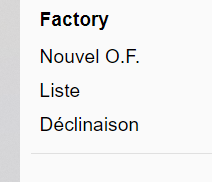
Factory: Displays the factory "space" with dashboards showing module usage.
|-
| New Work Order: Allows you to directly create a Production Order (PO) by selecting either a product with a defined composition or a BOM.
|-
| List: This entry will display the list of production orders entered in your database. The list offers numerous sorting and filtering options.
|-
| Consumption Report: This menu allows you to view monthly and annual consumption. You can view the times the planned and actual consumption.
|-
| Time Report: The module allows you to enter times associated with employees for services used in a work order. It is possible to plan times, as well as those actually used. This entry is made on a work order tab that will be presented in the documentation (Associated functionality / provided by the TimeKeeper module).
|-
| Declination: The Declination entry will display the page for launching the generation of declinations. The operation of this page requires the correct configuration of all necessary elements.
|}
| style="vertical-align:top;" |
Factory: Displays the factory "space" with dashboards showing module usage.
|-
| New Work Order: Allows you to directly create a Production Order (PO) by selecting either a product with a defined composition or a BOM.
|-
| List: This entry will display the list of production orders entered in your database. The list offers numerous sorting and filtering options.
|-
| Consumption Report: This menu allows you to view monthly and annual consumption. You can view the times the planned and actual consumption.
|-
| Time Report: The module allows you to enter times associated with employees for services used in a work order. It is possible to plan times, as well as those actually used. This entry is made on a work order tab that will be presented in the documentation (Associated functionality / provided by the TimeKeeper module).
|-
| Declination: The Declination entry will display the page for launching the generation of declinations. The operation of this page requires the correct configuration of all necessary elements.
|}
Definition of a Product's Composition
Prerequisites
For a composite product to have a composition, it must be of a "manufactured" nature.
The composition is carried out by the selection of predefined products and/or services.
|
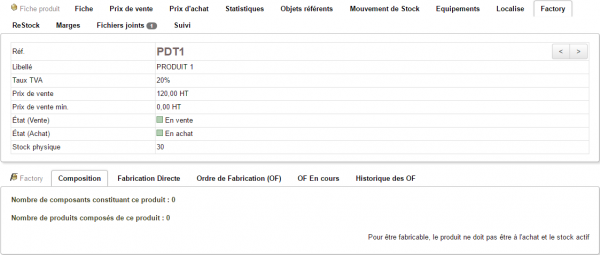
The manufacturing features, whether direct or by production order, are accessible from the "Factory" tab of the product page and then from the second-level tabs.
|
Composition Determination
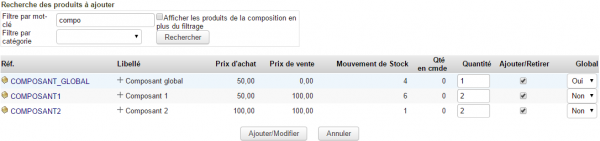
Click the "Composition" tab and then the "Composition Definition" button to select the component products.
|
|
For quick searches, you can filter the list of products to select from the composition
|
|
|
When a composition is saved for a product, the "Show composition products in addition to filtering" checkbox allows you to display the component products already saved in addition to the filter results
|
|
Specify the quantities of each component for the production of one unit of the composite product.
You can specify whether the quantity will be consumed globally (see note below).
Check the box and click the "Add/edit" button to confirm your entry. |}
|
|
The quantity used of a product defined as global to a composition will remain unchanged regardless of the quantity of the composite product manufactured (ex: manufacturing one or five composite products requires a single unit of labor each time.)
|

|
When selecting components for a composition, you can order them by entering a position and add a note. These two options are accessible by clicking the + in front of the component label:
|
|
If your product sheets contain an image, it will appear in a tooltip!
|
|
Product Variant Composition
When using product variants, it is possible to retrieve the parent product's composition directly from the variant sheet.
Composition and Decomposition
Factory also allows you to decompose products by entering a quantity in decimal format as follows:
Let's take a box of 10 items to be decomposed into 10 individual items.
|
|
Please note that the operating mode has changed; you must now enter a negative value to break down a product.
| Two products will need to be created
|
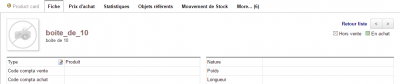 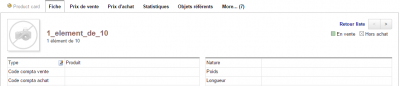
|
| and the element composition saved as shown opposite
|
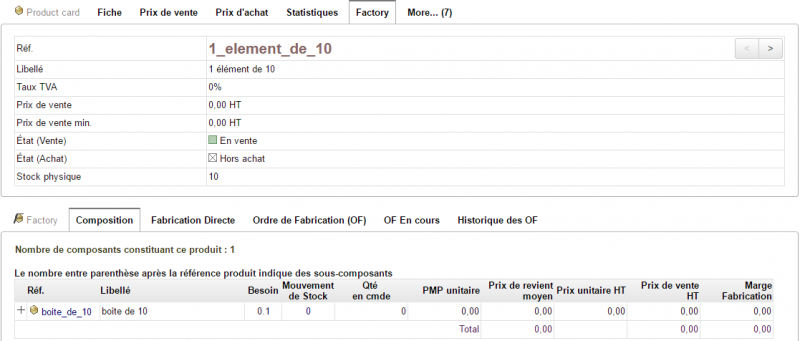
|
Manufacturing Levels
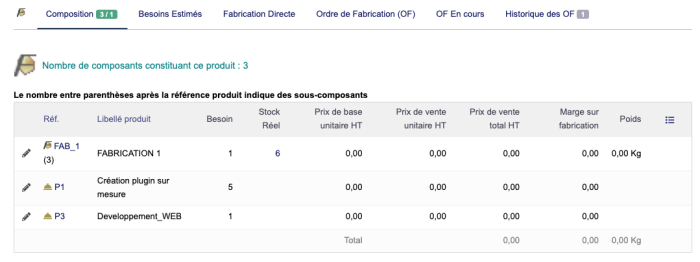
Factory can manage multiple manufacturing levels, including component products themselves produced through manufacturing.
|
In a composition, if you select a product that is itself composed, the information will be given by the number in parentheses indicating the number of components in this product, which is (3) for FAB_1.
|
Deleting Components
To delete a component from a composition, return to the product composition, click the Composition Definition button, uncheck the boxes of the components to be deleted, and then save your changes.
|
|
If you modify the composition of a product, it will be applied to all subsequent production runs of the same composite product
|
|
|
A composition can be modified on a production order. The modification only affects the production order and does not modify the composition saved on the composite product
|
Composition Options
- Retrieve Prices (Sale and Purchase): This button allows you to retrieve the sale and purchase prices of component and composite products from the composition.
|
|
The retrieved sale price will be the first price in your grid if you use the multi-price management feature, while the retrieved purchase price will be the PMP (calculated from supplier orders) or the cost price/CostPrice if you have enabled the feature to use this value in the Factory settings.
|
- Adjust Prices: Adjusting the sale prices will allow you to modify the sale and purchase prices of the products in the composition.
|
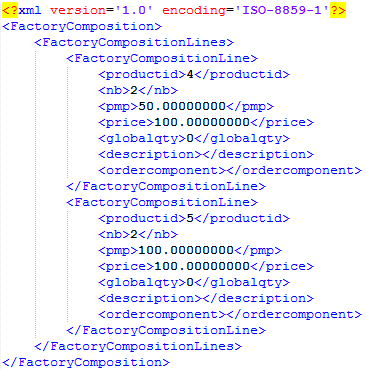
- XML Import/Export of the composition: the composition of a product can be imported from an XML file according to the example opposite.
- The XML import of the composition is specific to a product: A single XML file will not allow the saving of compositions for different products. To import a large number of product compositions, use the Composition Import feature instead.
|
Direct Manufacturing
|
|
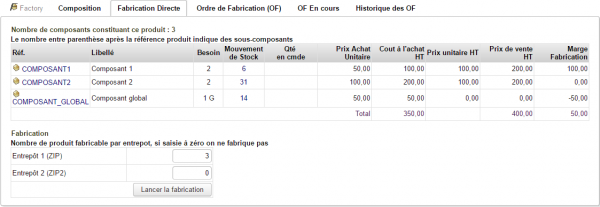
If the component quantities are not in stock in the same warehouse, it will not be possible to start manufacturing.
|
|
Once a product's composition has been saved, click on the second-level Direct Manufacturing tab in the Factory tab of the product sheet to be manufactured.
Factory automatically calculates the quantity of product that can be manufactured based on the quantities of component products present in the warehouses.
Modify the quantities to be manufactured if necessary and click on the Start manufacturing button.
A confirmation message is displayed. The page then displays the updated quantities of products in stock.
|
|
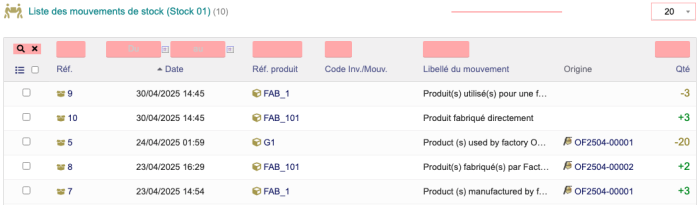
Warehouse stock movements display movements related to manufacturing.
|
Production Orders (PO)
Production orders allow you to plan your production. You can create a production order from product sheets or from customer order sheets.
Creating and Launching from Product Sheets
|
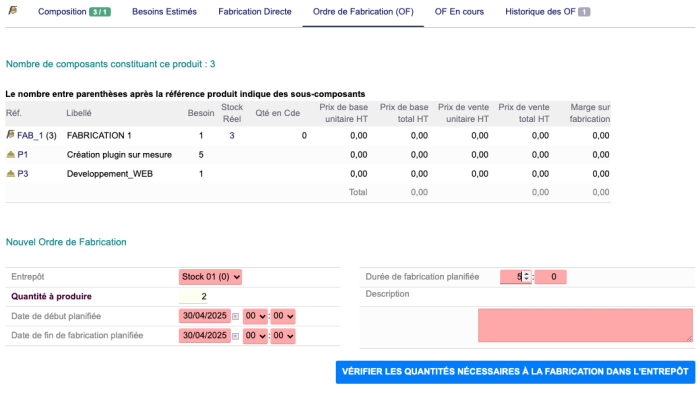
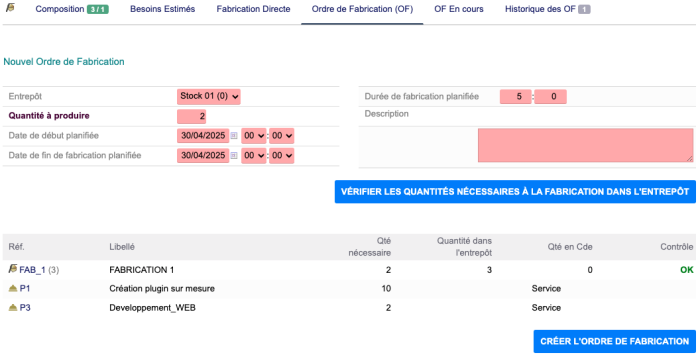
Once a product's composition has been saved, click on the second-level Manufacturing Order tab in the Factory tab of the product sheet to be manufactured.
|
|
|
It is possible to create a manufacturing order even if there is insufficient stock on the creation date: You can replenish your warehouses between the creation date of the manufacturing order and its validation.
|
|
Select the manufacturing warehouse and the quantity of products to be manufactured, the planned manufacturing start and end dates and, if necessary, a manufacturing duration and description.
Check the quantities of products required for manufacturing: Factory requires a control step with the button Check the quantities required for manufacturing in the warehouse before continuing with the creation of the work order.
The screen will show you the missing quantities in the warehouse selected when creating the work order.
For future illustrations, the warehouses will be restocked with the missing products.
|
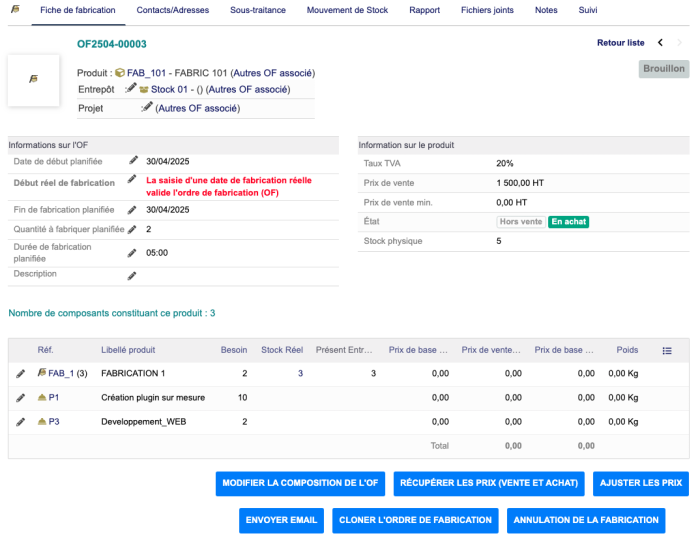
Finally, click the "Create Manufacturing Order" button. The page will then display the list of production orders for the product to be manufactured.
|
Open the production order file from the previous page or from the "Products/Services > Factory > List" menu link:
|
|
The description of a production order can be pre-filled with the contents of an additional field present on the composite product file. Declare the field in the configuration.
|
|
Creating and Launching from Customer Order Records
|
|
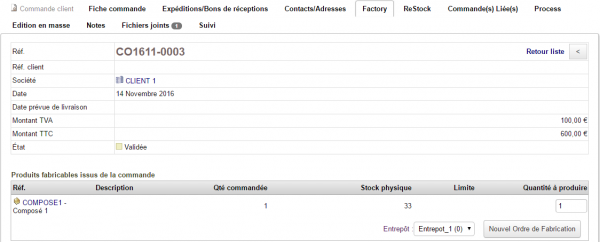
When creating a work order from a customer order, the suggested production quantity only takes into account the quantity of products present on the order.
|
|
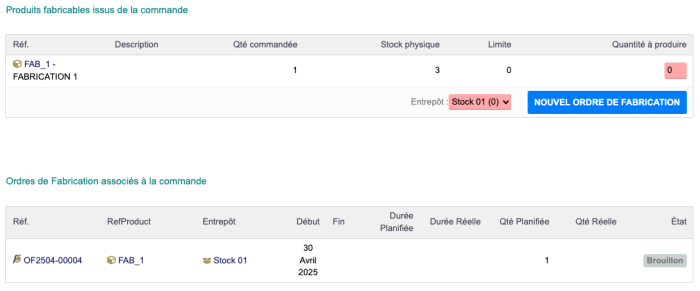
Creating a work order from a customer order record follows the same creation procedure. The following steps are common, regardless of the source from which the work order was created.
The page for creating a production order from a customer order is accessible from the Factory tab of its record.
|
|
|
|
The production order linked to a customer order is indicated on the customer order record, Factory tab
|
|
Working Order Form Buttons
At this stage, you can:
- Cancel the work order: Deleting a work order is not possible. You can only cancel it using the "Cancel Production" button.
- Modify the work order composition: You can modify the product composition on the work order. Clicking this button will display the "Determine Composition" page.
|
|
Modifying the composition on the work order only applies to the work order and does not change the composition recorded on the Factory tab of the product sheet.
|
- Sending the work order by email requires activating the email sending option and selecting a contact on the "Contact" tab of the work order (see Dictionary). *Clone the work order: cloning allows you to copy the work order by using or modifying the quantity, product and initial warehouse.
Validating and Reporting a Production Order
To validate the production order, enter its actual production date by clicking the icon.
|
The production order will then change to the "Validated" status. All that's left to do is enter its report.
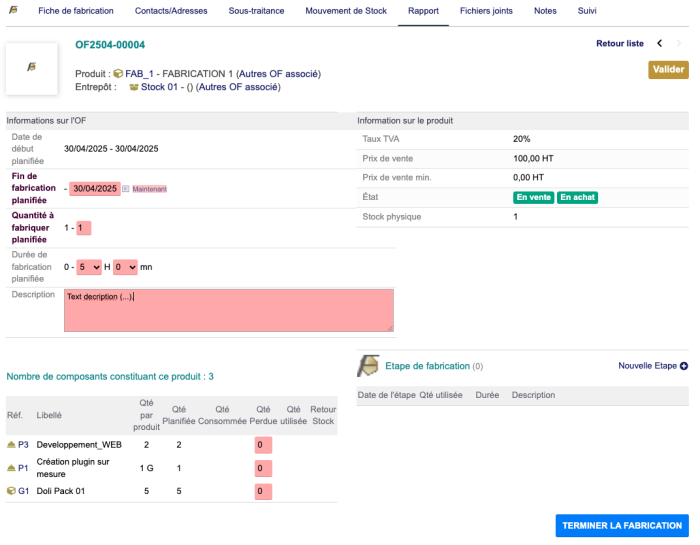
Open the Report tab of the OF file.
Confirm the quantity actually manufactured. Close the work order with the Complete production button.
|
|
Closing the work order is necessary to record stock movements from the work order
|
|
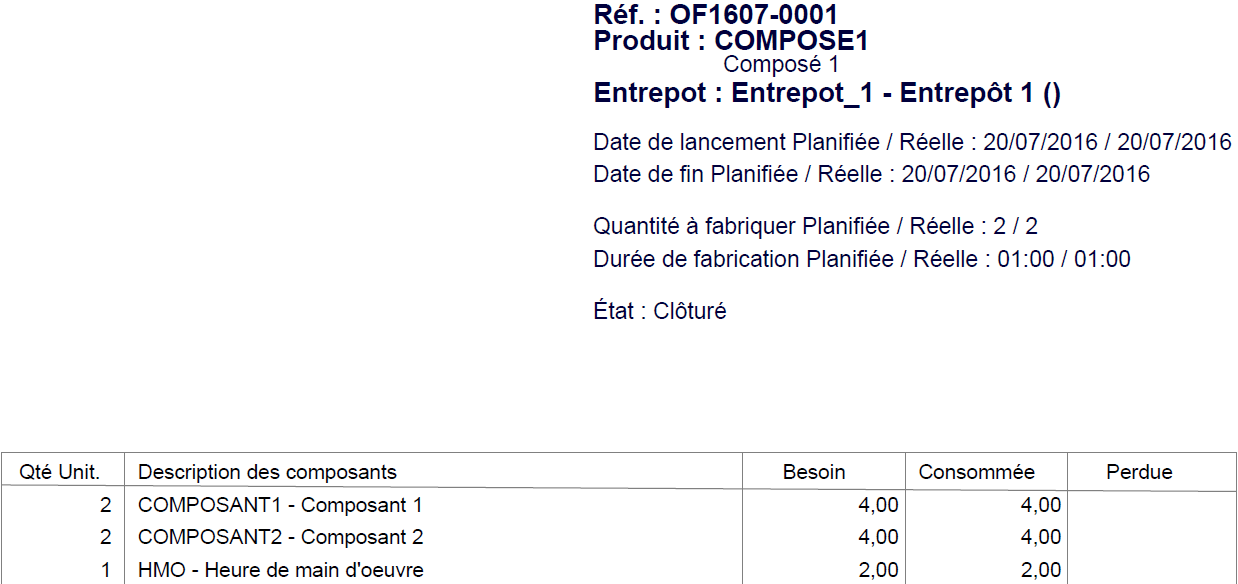
Editing the PDF of Production Orders
|
|
|
The PDF is enriched with information entered throughout the activity, particularly losses!
|
|
Stock Movements

|
Once manufacturing is complete, stock movements are recorded. In the previous case, they are as follows:
|
|
|
Stock movements related to the production order are accessible from the Stock Movements tab of its file and from the complete list of movements for a warehouse or product. They mention the origin (direct manufacturing or production order followed by its reference).
|
Loss Management
| Fichier:Factory-Loss1.png
|
Component losses are recorded in the manufacturing report. Lost components will be deducted from inventory. Others can be returned to inventory.
|
| Fichier:Factory-Loss2.png
|
In the following case, the plan was to manufacture four composite products. We will record the manufacture of three products and the loss of one component, P3.
Factory automatically calculates the quantities of products lost or returned to stock based on the quantities actually manufactured and the products declared lost.
|

|
Stock movements related to the work order will then be:
|
|
|
In the case of products and not services (products return to stock and services will not be counted).
|
Consumption Report
Factory allows you to track monthly and annual product consumption.
Subcontracting Management
Operating Principle
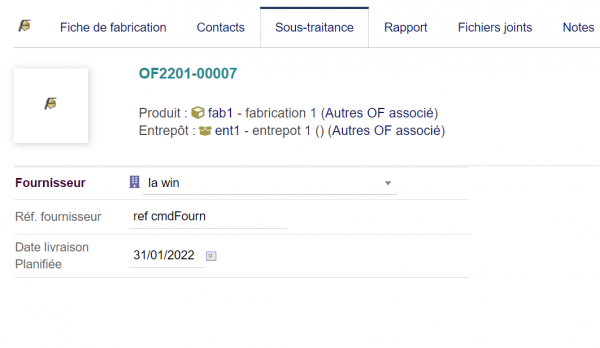
It is possible to subcontract a production order to a subcontractor and track it from the work order.
|
Start by selecting the subcontractor from the dedicated tab at the work order level.
and creating an associated supplier order.
|
Factory and Projects
Operating Principle
Factory allows you to manage the creation of unique parts or the consumption of products for projects. This management is done by associating products with project tasks.
When the project is active/valid, it is possible to enter the products consumed on the tasks.
|
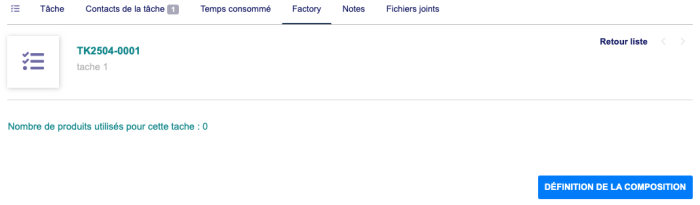
Factory adds a first tab to the task sheet allowing you to select the products that will be used during the task.
|
A custom product is a set of products and services associated with each other. Unlike a mass-produced product, a custom product is not manufactured according to a predefined composition and is not referenced in the Dolibarr product list.
The selection of products associated with a stain follows the same procedure as that for defining the composition.
|
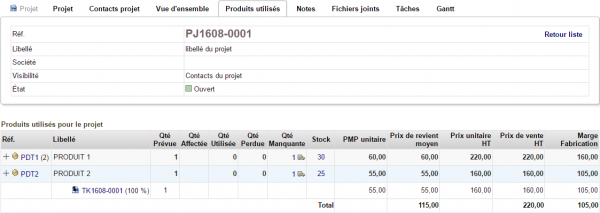
The "Products Used" tab of the product sheet summarizes the products used for each of its tasks.
|
|
|
|
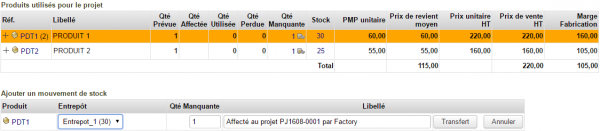
Clicking on the + displays the task on which the product is used.
|
To make a stock movement, click on the missing quantity of product.
|
| Fichier:Factory-Transfert-stock-tache-registred.png
|
It will then be indicated that
|
Finally, the single product / project mode also offers the possibility of associating the products selected in a task with a product using the use the composition in a product button.
When the project is closed, it is possible to use the composition transfer function on an existing product.
Task compositions of a closed project can be transferred to another task with the Transfer to another task button.
This feature allows you to perform composition tests for a product or keep updated compositions on the product according to seasonality.
When a project is validated, it is possible to enter the product consumption for the task with the Adjust quantities button.
These quantities are of two types:
- Quantities actually consumed for production
- Lost quantities that were assigned to the task but were not used for production (loss, breakage, etc.)
- The sum of these quantities should theoretically correspond to the quantities assigned to the task and may change as the task progresses.
- The quantities displayed in this table represent the following values:
- *Planned Quantity: The quantities initially entered in the task
- *Assigned Quantity: The quantities assigned to this project from a warehouse
- *Used Quantity: The quantities consumed during the task's progress
- *Lost Quantity: The quantities assigned to the task but not used (loss, breakage, etc.)
- *Missing Quantity: The quantities remaining to be ordered to complete the project.
Le calcul de la quantité manquante s’effectue de la manière suivante :
Si Qté Prévue > (Qté Utilisée + Qté perdue)
Alors Qté Manquante = Qté Prévue – Qté Affectée
Sinon Qté Manquante = (Qté Utilisée + Qté perdue) – Qté Affectée
Autres fonctionnalités de Factory
Import de compositions
|
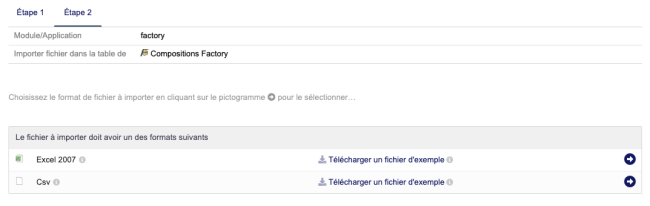
Factory permet l'import de composition par l'outil natif de Dolibarr. À l'étape 2 d'un import, il vous sera proposé de télécharger le fichier exemple d'import au format csv.
|
Export de compositions

|
Factory permet également l'export des compositions et des ordres de fabrication par l'outil natif de Dolibarr
|
Afficher/masquer les données tarifaires des produits composants
La permission utilisateur voir la tarification d'un ordre de fabrication permet de cacher à certains utilisateurs les informations tarifaires
Widgets en page d'accueil
|
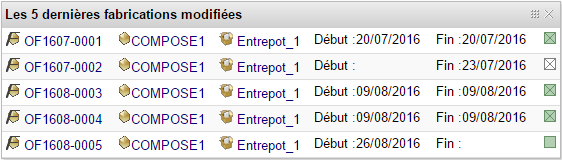
La page d'accueil de Dolibarr affichera un widget des derniers ordres de fabrication
|
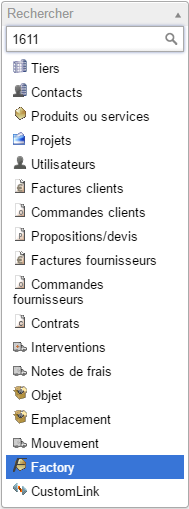
Recherche d'ordre de fabrication
|
Les ordres de fabrication peuvent être retrouvés rapidement avec la barre de recherche latérale
|
Fonctionnalités annexes à Factory
Changement en masse des prix des produits fabriqués
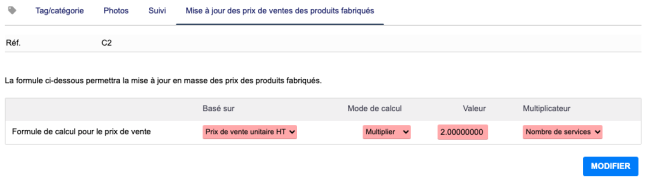
Factory permet d'enregistrer des formules de calcul qui s’appliqueront au prix des produits composés selon les prix des produits composants.
Cette fonctionnalité nécessite l’utilisation des catégories dans lesquelles les produits composés doivent être classés afin de pouvoir être pris en compte par les formules.
|
|
Autant de formules de calcul sont disponibles que de niveaux de prix paramétrés pour les produits/services
|
|
|
ATTENTION : Le Changement de prix ne s'applique que les PRODUITS FABRIQUÉS (Non les produits & service individuel).
|
|
Dans les fiches des catégories, onglet Mise à jour des prix, enregistrez vos formules de calcul automatiques en sélectionnant les valeurs avec les listes déroulantes
Dans l'exemple ci-contre, les prix de niveau 1 des produits fabriqués seront mis à jour selon la formule suivante :
Somme des prix de vente des composants multiplié par 2 multiplié par 5 (nombre de composants) soit 400 x 2 x 5 = 4000 HT (4800 TTC)
Les listes de sélection vous permettent de paramétrer vos changements de prix en masse selon le prix de vente ou le PMP des composants, auquel ajouter, soustraire, multiplier ou diviser, selon un nombre à saisir de multiplicateur parmi le nombre de service ou le nombre de produits.
|
|
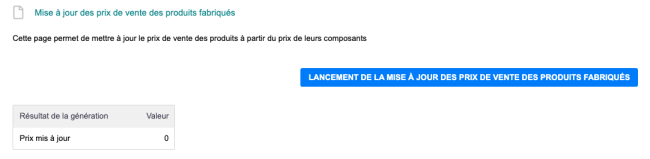
Une fois les formules enregistrées par catégorie, depuis le lien de menu Produits/Services > Factory > Mise à jour prix, lancez la mise à jour des prix avec le bouton dédié
|
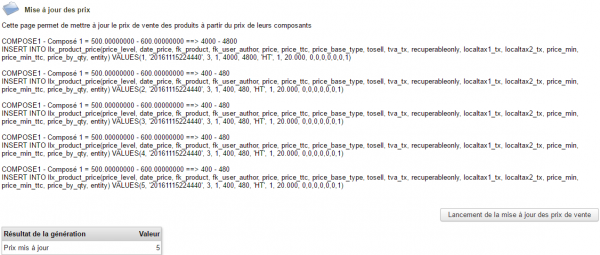
|
La page vous affichera alors le nombre de prix qui auront été modifiés et une vue des modifications effectuées
|
Déclinaisons
Le but de la fonction est de générer autant de produits qu’il y a de déclinaisons définies.
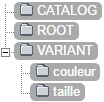
Pour cela, Factory utilise à la fois la création de composition et la gestion des catégories de produits/services. Les produits doivent être classés dans 3 catégories distinctes :
- le groupe des produits racines (ROOT) servant de base à la déclinaison : Les produits qui lui sont associés ne sont pas à la vente ni à l'achat mais on définit sur ceux-ci des prix de base.
- les groupes de produits déclinant (VARIANTS) : ils ne sont, par défaut, ni à la vente ni à l'achat, mais on peut définir sur ceux-ci un prix qui sera ajouté au prix de base (produits de la catégorie root) pour la déclinaison.
- le groupe des produits au catalogue (CATALOG) qui sont à la vente.
|
Créez d'abord les catégories de produits
|

|
Déclarez les ensuite dans la Configuration
|
|
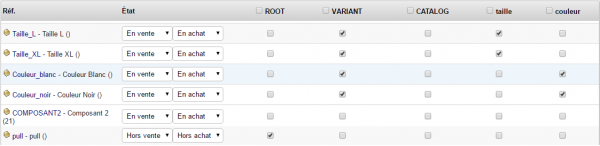
Créez ensuite les produits et leurs variantes et classez-les dans les catégories correspondantes
Le module Portofolio permet le classement rapide des produits dans les catégories parmi de nombreuses autres fonctionnalités.
|
|
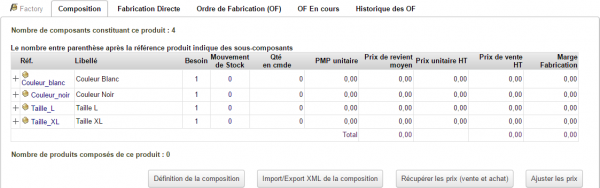
Enregistrons alors la composition du produit
|
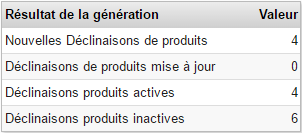
Depuis le lien de menu secondaire Produits/services > Factory > déclinaisons, cliquez sur le bouton Lancer la génération des déclinaisons produits.
|
Le tableau récapitulatif affiche le nombre de déclinaisons qui ont été créées dans la ligne Nouvelles Déclinaisons de produits
|
|
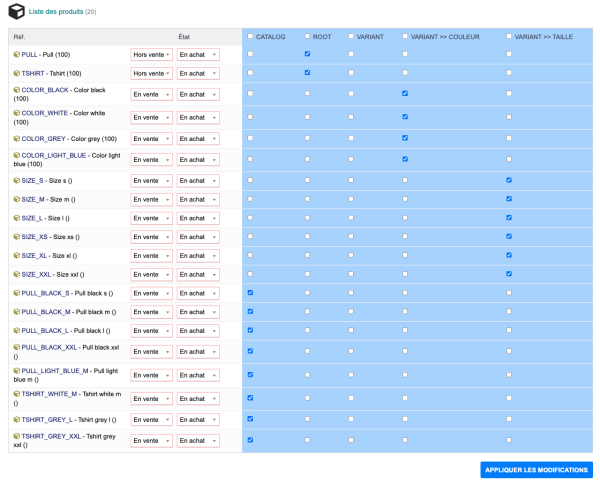
Dans la liste de vos produits, vous trouverez les déclinaisons créées
|
Questions fréquentes
Générales
Ce chapitre répertorie les difficultés rencontrées avec le module. Vous y trouverez donc des éléments de réponse quant à son utilisation.
Si vous rencontrez une autre erreur que celles décrites ci-dessous lors de l'utilisation de ce module :
- Désactivez et réactivez le module,
- Vérifier sur le ChangeLog si une nouvelle version a été publiée,
- Réinstallez/mettez à jour le module,
- Vérifiez que le remplacement de fichiers natifs de Dolibarr ne soit pas nécessaire au bon fonctionnement du module.
- Vérifiez qu'aucune incompatibilité avec un autre module ne soit indiquée. Le cas échéant, suivez nos préconisations.
Si, malgré ces manipulations, l'erreur persiste, contactez-nous en utilisant le formulaire dédié (http://docs.patas-monkey.com/support/).
Ce formulaire est le mode de contact à privilégier pour toute difficulté d'utilisation ou remontée de bug. Aussi, nous vous remercions de ne pas multiplier les canaux d'échange pour un même objet.
Message d'erreur suite à l'installation
- Si les modèles de numérotation des ordres de fabrication et de documents ne sont pas activés dans la configuration du module, le message d'erreur suivant sera affiché
- [[file:]]
- Activez les modèles de numérotation et de document, et tout rentrera dans l'ordre.
Défaut d'incrémentation des références des OF
- Suite à une mise à jour de Factory d'une version 1.4.4 et inférieure vers les versions 1.5.0 et supérieures, il est possible que vous rencontriez des erreur dans la numérotation des OF.
- Pour corriger ces erreurs, lancez la requête suivante sur votre base de données :
- UPDATE llx_factory SET ref = concat( SUBSTRING(ref,1,7),'0', SUBSTRING(ref,8)) WHERE length(ref)=11
- Cette opération ajoutera le 0 manquant aux anciennes références des OF. Si des OF présentent une mauvaise numérotation, il vous sera nécessaire de la modifier à la main.
|


 ).
).


 | style="vertical-align:top;" |
Factory: Displays the factory "space" with dashboards showing module usage.
|-
| New Work Order: Allows you to directly create a Production Order (PO) by selecting either a product with a defined composition or a BOM.
|-
| List: This entry will display the list of production orders entered in your database. The list offers numerous sorting and filtering options.
|-
| Consumption Report: This menu allows you to view monthly and annual consumption. You can view the times the planned and actual consumption.
|-
| Time Report: The module allows you to enter times associated with employees for services used in a work order. It is possible to plan times, as well as those actually used. This entry is made on a work order tab that will be presented in the documentation (Associated functionality / provided by the TimeKeeper module).
|-
| Declination: The Declination entry will display the page for launching the generation of declinations. The operation of this page requires the correct configuration of all necessary elements.
|}
| style="vertical-align:top;" |
Factory: Displays the factory "space" with dashboards showing module usage.
|-
| New Work Order: Allows you to directly create a Production Order (PO) by selecting either a product with a defined composition or a BOM.
|-
| List: This entry will display the list of production orders entered in your database. The list offers numerous sorting and filtering options.
|-
| Consumption Report: This menu allows you to view monthly and annual consumption. You can view the times the planned and actual consumption.
|-
| Time Report: The module allows you to enter times associated with employees for services used in a work order. It is possible to plan times, as well as those actually used. This entry is made on a work order tab that will be presented in the documentation (Associated functionality / provided by the TimeKeeper module).
|-
| Declination: The Declination entry will display the page for launching the generation of declinations. The operation of this page requires the correct configuration of all necessary elements.
|}


