« Transporteur/en » : différence entre les versions
Page créée avec « The module also allows you to manage free shipping and rates for each country. |} == Dolibarr Configuration == To make the Transporteur module operational, you must activate it. Follow the steps below: {| class="wikitable" |- style="vertical-align:top;" | 850px |Home > Configuration > Modules/Applications > Patas-Tools > Transporteur > Status "Activated" |} == Module Configuration == === General Settings === File:Transporteur_... » |
Aucun résumé des modifications |
||
| (17 versions intermédiaires par le même utilisateur non affichées) | |||
| Ligne 11 : | Ligne 11 : | ||
{| class="wikitable" | {| class="wikitable" | ||
|- style="vertical-align:top;" | |- style="vertical-align:top;" | ||
| [[File: | | [[File:Transporteur_Config3_en.png |850px]] | ||
|Home > Configuration > Modules/Applications > Patas-Tools > Transporteur > Status "Activated" | |Home > Configuration > Modules/Applications > Patas-Tools > Transporteur > Status "Activated" | ||
|} | |} | ||
== Module Configuration == | == Module Configuration == | ||
=== General Settings === | === General Settings === | ||
[[File: | [[File:Transporteur_Config1_en.png |800px]] | ||
We define a service associated with the transport which will be added to the document depending on the weight and country of the customer. | |||
It is also possible to indicate an amount to trigger "free shipping". | |||
< | <span id="Création_d’un_nouveau_frais_de_port"></span> | ||
== | == Creating a new shipping cost == | ||
To create a new shipping cost, follow the steps below: | |||
# Go to the "Module Settings" tab, then select the "Prices" tab. | |||
# Click the "New Shipping Rates" button. | |||
# | |||
[[File:Transporteur_Creation1_en.png| 800px]] | |||
[[File: | |||
=== Available Settings === | |||
A new window will appear with the fields to be filled in to configure the '''New Shipping Costs''': | |||
{| class="wikitable" | |||
{| class="wikitable" | |- style="vertical-align:top;" | ||
|- style="vertical-align:top;" | | [[File:Transporteur_Creation2_en.png| 800px]] | ||
| [[File: | | | ||
| | * '''Label''': Rate name, which will make this shipping charge easy to identify. | ||
* ''' | * '''Color''': Associated color code, useful for visually differentiating rates. | ||
* ''' | * '''Country''': Selection of the country(ies) affected by this shipping charge. | ||
* ''' | * '''Maximum Weight''': Indicates the maximum weight limit for which this rate is valid. | ||
* ''' | * '''Units''': Choice of the unit of measurement used for weight (for example): | ||
* ''' | ** Tons — suitable for very large shipments. | ||
** | ** Kg — for most standard shipments. | ||
** Kg — | ** … — other units possible depending on the configuration. | ||
** … — | * '''Cost''': Amount billed to the customer for this transport. | ||
* ''' | |||
|} | |} | ||
=== Validation === | === Validation === | ||
Once all fields are completed, click the "Add" button to save the new shipping cost. | |||
=== Rate Management by Weight and Country === | |||
[[File:Transporteur_Config2_en.png |850px]] | |||
[[File: | |||
The Rates tab allows you to enter pricing based on country and weight. | |||
== Usage == | |||
The module can be used for proposals, orders, and customer invoices. | |||
[[File:Transporteur_Config4_en.png |850px]] | |||
[[File: | How to add shipping costs to a sales proposal. | ||
Dernière version du 10 septembre 2025 à 18:12

|
The Transporteur module allows you to add shipping costs to a sales proposal, order, or invoice based on product weights.
The module also allows you to manage free shipping and rates for each country. |
Dolibarr Configuration
To make the Transporteur module operational, you must activate it. Follow the steps below:

|
Home > Configuration > Modules/Applications > Patas-Tools > Transporteur > Status "Activated" |
Module Configuration
General Settings

We define a service associated with the transport which will be added to the document depending on the weight and country of the customer.
It is also possible to indicate an amount to trigger "free shipping".
Creating a new shipping cost
To create a new shipping cost, follow the steps below:
- Go to the "Module Settings" tab, then select the "Prices" tab.
- Click the "New Shipping Rates" button.

Available Settings
A new window will appear with the fields to be filled in to configure the New Shipping Costs:

|
|
Validation
Once all fields are completed, click the "Add" button to save the new shipping cost.
Rate Management by Weight and Country

The Rates tab allows you to enter pricing based on country and weight.
Usage
The module can be used for proposals, orders, and customer invoices.
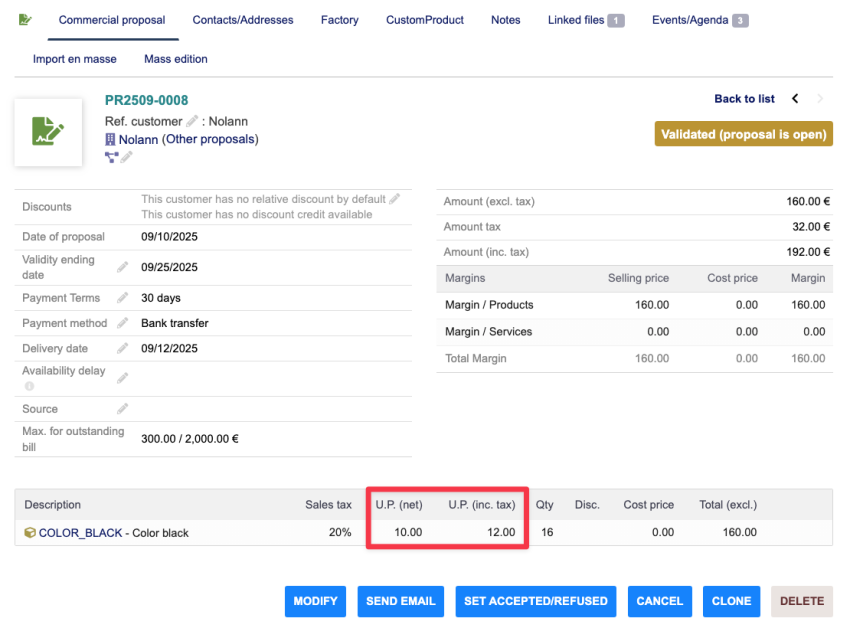


How to add shipping costs to a sales proposal.